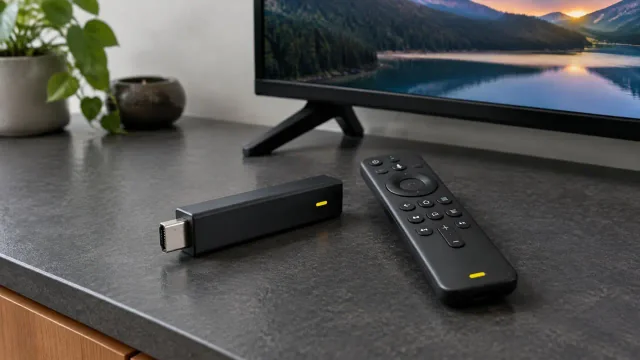
The whole job takes around 10 minutes: enable app installs, grab a player app with the Downloader method, sign in with your credentials and let the channels and EPG load.
Last updated: February 2026
Prepare your streaming device before installation.
What you need before you start
Any Amazon Fire TV Stick or Fire TV plugged in and updated — the steps below work on current Fire OS versions.
Your UKIPTVGo login credentials from the welcome email (server URL, username, password) — or request the free 24-hour trial first.
A stable internet connection — ideally 5 GHz Wi‑Fi rather than 2.4 GHz.
Step 1 — Allow apps from outside the Amazon store
The best Fire TV IPTV players (like TiviMate) aren't listed on Amazon's Appstore, so you'll install one safely using the official Downloader utility:
From the Fire TV home screen, open Settings → My Fire TV.
Choose Developer Options. If you can't see it, open About, highlight your device name and press select seven times to unhide it.
Turn on Apps from Unknown Sources (or "Install unknown apps") for Downloader.
Step 2 — Install Downloader
Back on the home screen, search for the orange Downloader app (by AFTVnews) in the Amazon Appstore.
Install it, then open it.
Allow the storage permission it asks for — it needs this to save the app file you're about to download.
Step 3 — Download your IPTV player
In Downloader's address bar, enter the official download address for your chosen player — for example from the IPTV Smarters or TiviMate websites — and press Go.
When the file finishes downloading, choose Install, then Done.
Delete the downloaded file when Downloader offers to — your stick's storage is limited.
Only ever download player apps from the developer's official site. Random APK mirrors are the number-one source of malware on streaming devices.
Step 4 — Sign in with your credentials
Open the player from Your Apps & Channels.
Choose Login with Xtream Codes API (IPTV Smarters) or Add playlist → Xtream Codes (TiviMate).
Enter the server URL, username and password from your welcome email exactly as written — they're case-sensitive. An on-screen keyboard plus the Fire TV app on your phone makes this much easier.
Let the first sync finish: it pulls in live channels, films, series and the programme guide — allow a few minutes.
Step 5 — Tune it for smooth playback
In your player's settings, enable hardware decoding if streams stutter.
Set the EPG to refresh on app start so listings stay current.
Add your everyday channels to Favourites so you're not scrolling thousands of entries.
Keep at least a few hundred MB of free space on the stick — near-full storage causes odd behaviour.
If something's not right
"Invalid login": re-enter the details — one wrong character or a trailing space breaks the sign-in.
Buffering: switch to 5 GHz Wi‑Fi or an Ethernet adapter, then follow the IPTV buffering fix guide.
App crashing: clear the app's cache via Settings → Applications → Manage Installed Applications.
Empty guide: give the EPG a few minutes to download, then refresh it from the player's settings.
Do I need to 'jailbreak' my Firestick to use IPTV?
No. Installing a third-party IPTV player only requires enabling 'Apps from Unknown Sources' for the Downloader app — a standard Fire TV setting you can switch back off afterwards. No hacking or rooting is involved.
Which IPTV app is best on Firestick?
TiviMate is the best-looking player on Fire TV for live TV and EPG. IPTV Smarters is the simplest if you want a single login screen that also bundles films and series. Both can be installed with the Downloader method in this guide.
Why does my Firestick IPTV keep buffering?
Fire TV sticks are sensitive to Wi‑Fi quality — especially the cheaper Lite model. Work through our buffering fix guide; switching from 2.4 GHz to 5 GHz Wi‑Fi (or using an Ethernet adapter) solves most cases.
Grab your login and follow along
The free 24-hour trial lands in your inbox with every detail this guide asks for — no card required.